


..
Senin, 27 Februari 2017

Minggu, 26 Februari 2017
Simulasi Routing VLAN antar Gedung
Praktek
Simulasi Routing VLAN antar Gedung
Topologi Routing VLAN

Simulasi Routing VLAN antar Gedung
Konfigurasi IP Backbone
Alamat IP Router0
Router0(config)#interface FastEthernet 0/0
Router0(config-if)#ip address 192.168.0.1 255.255.255.0
Router0(config-if)#no shutdown
Router0(config-if)#ex
Alamat IP Router1
Router1(config)#interface FastEthernet 0/0
Router1(config-if)#ip address 192.168.0.2 255.255.255.0
Router1(config-if)#no shutdown
Router1(config-if)#ex
Untuk konfigurasi VLAN bisa di baca di artikel saya:
Konfigurasi Routing RIP
Routing RIP Router0
Router0(config)#router rip
Router0(config-router)#network 192.168.0.0
Router0(config-router)#network 192.168.1.0
Router0(config-router)#network 192.168.2.0
Router0(config-router)#ex
Router0(config)#ex
Routing RIP Router1
Router1(config)#router rip
Router1(config-router)#network 192.168.0.0
Router1(config-router)#network 192.168.3.0
Router1(config-router)#network 192.168.4.0
Router1(config-router)#ex
Router1(config)#ex
Monitoring Status Routing RIP
Status RIP Router0
Router0#show ip route
Codes: C – connected, S – static, I – IGRP, R – RIP, M – mobile, B – BGP
D – EIGRP, EX – EIGRP external, O – OSPF, IA – OSPF inter area
N1 – OSPF NSSA external type 1, N2 – OSPF NSSA external type 2
E1 – OSPF external type 1, E2 – OSPF external type 2, E – EGP
i – IS-IS, L1 – IS-IS level-1, L2 – IS-IS level-2, ia – IS-IS inter area
* – candidate default, U – per-user static route, o – ODR
P – periodic downloaded static route
Gateway of last resort is not set
C 192.168.0.0/24 is directly connected, FastEthernet0/0
C 192.168.1.0/24 is directly connected, FastEthernet0/1.10
C 192.168.2.0/24 is directly connected, FastEthernet0/1.20
R 192.168.3.0/24 [120/1] via 192.168.0.2, 00:00:18, FastEthernet0/0
R 192.168.4.0/24 [120/1] via 192.168.0.2, 00:00:18, FastEthernet0/0
Status RIP Router1
Router1#show ip route
Codes: C – connected, S – static, I – IGRP, R – RIP, M – mobile, B – BGP
D – EIGRP, EX – EIGRP external, O – OSPF, IA – OSPF inter area
N1 – OSPF NSSA external type 1, N2 – OSPF NSSA external type 2
E1 – OSPF external type 1, E2 – OSPF external type 2, E – EGP
i – IS-IS, L1 – IS-IS level-1, L2 – IS-IS level-2, ia – IS-IS inter area
* – candidate default, U – per-user static route, o – ODR
P – periodic downloaded static route
Gateway of last resort is not set
C 192.168.0.0/24 is directly connected, FastEthernet0/0
R 192.168.1.0/24 [120/1] via 192.168.0.1, 00:00:02, FastEthernet0/0
R 192.168.2.0/24 [120/1] via 192.168.0.1, 00:00:02, FastEthernet0/0
C 192.168.3.0/24 is directly connected, FastEthernet0/1.30
C 192.168.4.0/24 is directly connected, FastEthernet0/1.40
Download File Contoh Packet Tracer:
Cara Install Cisco IOS Pada GNS3
Cara Install Cisco IOS Pada GNS3 – Pada artikel sebelumnya saya sudah membahasa tentang bagaimana cara menginstall mikrotik pada GNS3. kali ini saya akan membahas tentang bagaimana menginstall dan menjalankan cisco ios pada GNS3 simulator
Cisco IOS merupakan sistem operasi multitasking yang mengatur proses routing, switching internetworking dan fungsi telkomunikasi lainya yang ada dalam router cisco. sama dengan mikorik RouterOS cisco juga menciptakan berbagai jenis IOS image yang penggunakanya tergantung dengan model router dan fitur dalam IOS tersbut
Berikut beberapa cara yang harus anda lakukan dalam menginstall cisco ios pada virtual GNS3, pada contoh ini saya menggunakan IOS Image c3640-js-mz.124-25d.bin. ios ini support dengan router cisco serie c3600 anda dapat mendownloadnya disini
1) Langkah pertama yang harus anda lakukan pastikan anda sudah melakukan download Cisco IOS
2) Lakukan Regestrasi Image tersebut dengan cara klik menu Edit > Preference3) Kemudian Pilh IOS routers dan masukan Cisco IOS yang sebelumnya sudah anda download
2) Lakukan Regestrasi Image tersebut dengan cara klik menu Edit > Preference3) Kemudian Pilh IOS routers dan masukan Cisco IOS yang sebelumnya sudah anda download

3) Langkah berikutnya anda dapat memberi nama router pada contoh ini saya memberi nama jenis router c3600

4) Kemudian anda dituntut untuk memilih berapa ukuran memori RAM yang akan digunakan

5) Kemudian anda juga dituntut untuk memilih berapa jumlah interface yang terpasang pada router cisco

6) Setelah selesai anda akan ditampilan dengan informasi lengkap router cisco yang baru saja anda tambahkan

7) Setelah IOS ditambahkan selanjutnya kita bisa mengsimulasikan router, dengan melakukan drag and drop kedalam halaman kerja GNS3

8) Kemudian lakukan klik start untuk menjalankan router, dan melakukan klik console untuk menjalankan terminal CLI (command line interface) pada cisco

http://omahjaringan.com/cara-install-cisco-ios-pada-gns3/
Kamis, 16 Februari 2017
Senin, 13 Februari 2017
Memperbaiki windows server no booting /os eror
Fix Automatic Startup Repair Loop in Windows 10, 8 and 7
November 6th, 2015 by Leave a reply »
A customer recently mentioned that his Windows 8 laptop was stuck in an Automatic Repair loop. When he turned on the computer, it came up with the ‘Preparing Automatic Repair’ screen, and then rebooted automatically and ran Automatic Repair again, becoming caught in the loop again and again.
There could be many reasons for a failed automatic repair. However, the most common problem is corrupted registry or missing files on the hard disk. Here I will give the complete solutions on how to fix this issue in Windows 10, 8 and 7.
All the solutions below require you to run certain commands at the Command Prompt. Here is a way to access the Command Prompt at boot:
- Insert your Windows installation DVD, turn on the computer, and wait until you see the message “Press any key to boot from CD or DVD“. Just press any key to continue. (Note: If you don’t see this message, you probably have to change the boot order in the BIOS)
- After a while, you’ll get to the Windows Setup screen. Press Shift + F10 to open a Command Prompt.
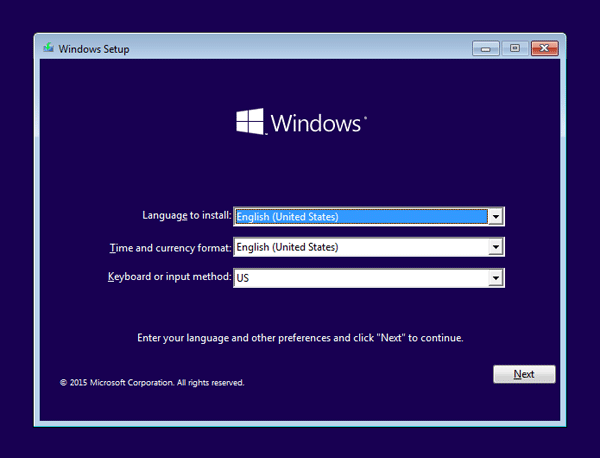
Solution 1: Running check disk to see if your hard drive is the problem
Chkdsk could be used to check and repair your hard drive for filesystem corruption. Before running the chkdsk command, you have to find out the drive letter of your system drive. Depending on how your system is setup, this could be either C: or D:.
- Type dir C:\ and press Enter.
- If you see the common folders: Program Files, Users and Windows, then you have found your system drive.
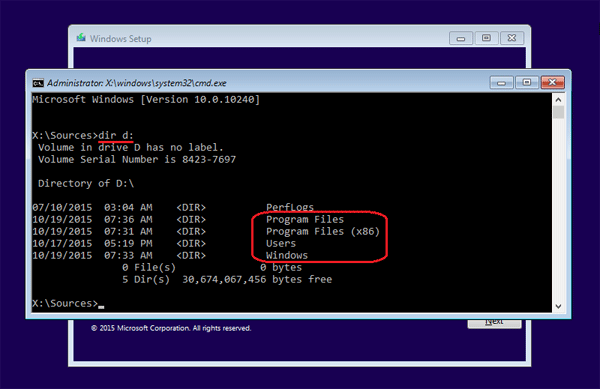 If the drive is not your system drive, repeat the step above, changing the drive letter to D, E or some other letter until the system drive is located.
When you have located your Windows system drive, type the following command and press Enter. Replace d: with the actual drive letter of your system drive.
chkdsk d: /f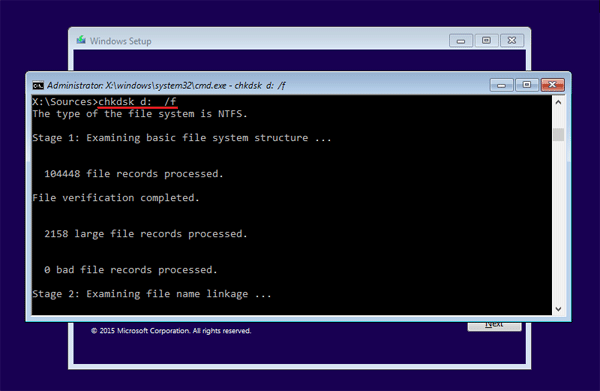
The scan should start. This could take several hours depending on the size of your hard drive. Once the scan is done, exit the Command Prompt and reboot your computer to check if the problem has been solved.
Solution 2: Manually attempt to rebuild the BCD and repair MBR
Running the bootrec utility to rebuild the BCD / MBR might fix the automatic repair loop problem. Type the following set of commands at the Command Prompt, one by one.
bootrec /fixmbr
bootrec /fixboot
bootrec /rebuildbcd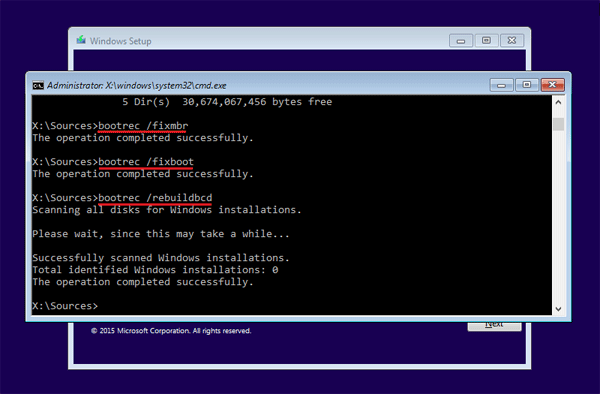
The /fixmbr switch writes a new MBR (Master Boot Record) to the system partition, the /fixboot switch writes a new boot sector onto the system partition, and the /rebuildbcd switch scans all disks for Windows installations and provides a choice of which entries to add to the BCD store.
Solution 3: Disable Automatic Startup Repair
If the automatic repair couldn’t really repair your PC and just get you stuck in a repair loop, it’s better to disable the automatic startup repair. Type the following command and press Enter:
bcdedit /set {default} recoveryenabled No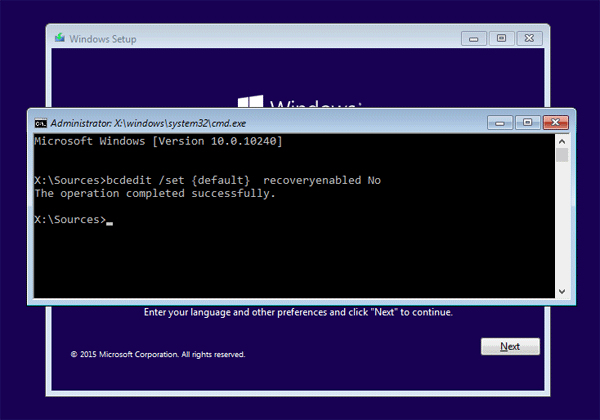
Now you’ve successfully disabled the automatic startup repair feature in Windows.
Solution 4: Restore your Windows registry
A corrupted registry settings can also cause a auto-repair loop. Here is how to restore your registry from the RegBack directory. The RegBack folder is located in :/windows/system32/config, which is used by Windows to hold a recent backup copy of the registry hives.
Assuming your system drive is d:, run the following command to restore Windows registry:
copy d:\windows\system32\config\RegBack\* d:\windows\system32\config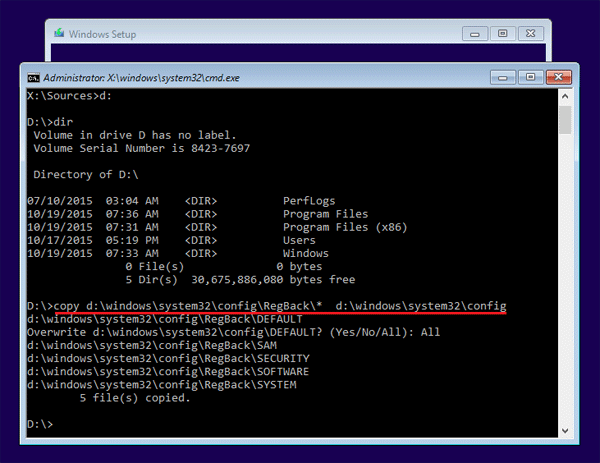
if prompted to overwrite existing files, type All and hit Enter. Type exit and hit Enter to close the Command Prompt window. Restart your computer and most probably, you may able to access your Windows system as before.
http://www.top-password.com/blog/fix-automatic-startup-repair-loop-in-windows/
Langganan:
Postingan (Atom)