Tampilkan postingan dengan label software. Tampilkan semua postingan

Rabu, 22 Maret 2017

By default, multiple concurrent remote desktop sessions are not allowed on any of Windows desktop systems, including Windows 10. Here is what you will get when you are trying to log in 2 or more accounts simultaneously on a Windows 10 computer.
Remote Desktop Connection - 2015-12-23 23_18_19
Another user is signed in. If you continue, they will be disconnected. Do you want to continue?
If you click Yes, the current session will be disconnected to make the room for your connection. It doesn’t log off but rather switches to the account you logged in.
Just like on Windows 7, and 8, there are ways to work around it. And here is one of them.
Warning: before you start, create a system restore point or back up termsrv.dll file in c:\windows\system32 folder, just in case something goes wrong along the way.
First of all, download the zipped file below and extract the termsrv.dll file to a convenient location such as Desktop.
Note that the revised version of termsrv.dll is compatible on Windows 10 build 11085.
Then, stop Remote Desktop Service by running the following command on an elevated Command Prompt.
net stop termservice
Now, open File Explorer, navigator to c:\windows\system32 folder and locate the termsrv.dll file. Since only TrustedInstaller account can get access to the file, you will need to change its ownership and give the full control permission to Administrators group before you can make changes to this DLL file.
Right-click termsrv.dll file, and choose Properties. Go to Security tab and click Advanced button.
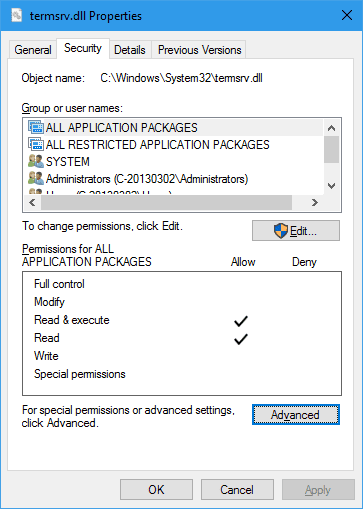
termsrv.dll Properties
Then click Change link next to Owner: TrustedInstaller and select an account that has local administrator rights. Click OK and OK to close the Properties dialog box.
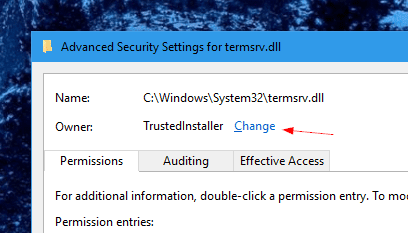
Advanced Security Settings for termsrv.dll
Right-click termsrv.dll file again, and choose Properties. Go to Security tab and give the local administrators group the full control rights.
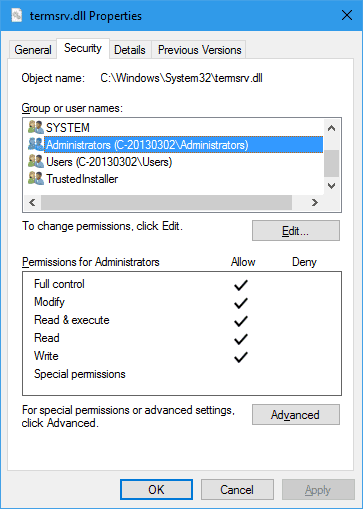
Local admin group with full access
Once it’s all set, copy the termsrv.dll you downloaded earlier into c:\windows\system32 folder to replace the default one that comes with the system.
Restart Remote Desktop Service by
net start termservice
And let’s give it a try to see if it works. As you can see from the screenshot below, I successfully log in 2 accounts to the same Windows 10 computer at the same time. Hooray.
Multiple Concurrent RDP sessions in Windows 10
If you are looking for doing the same thing on Windows 7 or Windows 8, check out the following posts.
  • Enabling multiple concurrent RDP sessions on Windows 8
  • Enabling multiple concurrent RDP sessions on Windows 7
  • By default, multiple concurrent remote desktop sessions are not allowed on any of Windows desktop systems, including Windows 10. Here is what you will get when you are trying to log in 2 or more accounts simultaneously on a Windows 10 computer.
    Remote Desktop Connection - 2015-12-23 23_18_19
    Another user is signed in. If you continue, they will be disconnected. Do you want to continue?
    If you click Yes, the current session will be disconnected to make the room for your connection. It doesn’t log off but rather switches to the account you logged in.
    Just like on Windows 7, and 8, there are ways to work around it. And here is one of them.
    Warning: before you start, create a system restore point or back up termsrv.dll file in c:\windows\system32 folder, just in case something goes wrong along the way.
    First of all, download the zipped file below and extract the termsrv.dll file to a convenient location such as Desktop.
    Note that the revised version of termsrv.dll is compatible on Windows 10 build 11085.
    Then, stop Remote Desktop Service by running the following command on an elevated Command Prompt.
    net stop termservice
    Now, open File Explorer, navigator to c:\windows\system32 folder and locate the termsrv.dll file. Since only TrustedInstaller account can get access to the file, you will need to change its ownership and give the full control permission to Administrators group before you can make changes to this DLL file.
    Right-click termsrv.dll file, and choose Properties. Go to Security tab and click Advanced button.
    termsrv.dll Properties
    Then click Change link next to Owner: TrustedInstaller and select an account that has local administrator rights. Click OK and OK to close the Properties dialog box.
    Advanced Security Settings for termsrv.dll
    Right-click termsrv.dll file again, and choose Properties. Go to Security tab and give the local administrators group the full control rights.
    Local admin group with full access
    Local admin group with full access
    Once it’s all set, copy the termsrv.dll you downloaded earlier into c:\windows\system32 folder to replace the default one that comes with the system.
    Restart Remote Desktop Service by
    net start termservice
    And let’s give it a try to see if it works. As you can see from the screenshot below, I successfully log in 2 accounts to the same Windows 10 computer at the same time. Hooray.
    Multiple Concurrent RDP sessions in Windows 10
    If you are looking for doing the same thing on Windows 7 or Windows 8, check out the following posts.
  • Enabling multiple concurrent RDP sessions on Windows 8
  • Enabling multiple concurrent RDP sessions on Windows 7

  • http://www.nextofwindows.com/how-to-allow-multiple-concurrent-remote-desktop-sessions-in-windows-10
  •  

Senin, 27 Februari 2017

Cara Menggunakan HD Tune Pro 5.50 Pada Hardisk Bad Sector

Langsung saja..
Pada kesempatan kali ini saya cuma membahas mengenai cara menggunakan HD Tune Pro 5.50 yang berhubungan dengan hardisk WDC 2TB GREEN kemaren yang saya perbaiki yaitu tidak terdeteksi sama sekali disebabkan banyaknya sector yang sudah jelek atau biasa dikenal "Bad Sector" dan cuma mengetahui apa hardisk yang saya betulkan kemaren masih ada sisa bad sectornya atau tidak. Setelah melalui proses HDD low level format, terakhir saya menggunakan software "HD Tune Pro 5.50". Langsung saja kita lihat tampilan pertama pada software ini


Setelah tampilan awal muncul kemudian klik "error scan" seperti gambar dibawah ini


Kemudian tentukan hardisk mana yang akan kita scan. Lihat gambar dibawah ini


Setelah kita memilih hardisk klik "Start" untuk memulai proses scan. Untuk lebih optimal guna mengetahui masih ada badsector atau tidak sebaiknya pada pilihan "Quick Scan" jangan dicentrang, tapi membutuhkan waktu yang lumayan lama hehe.


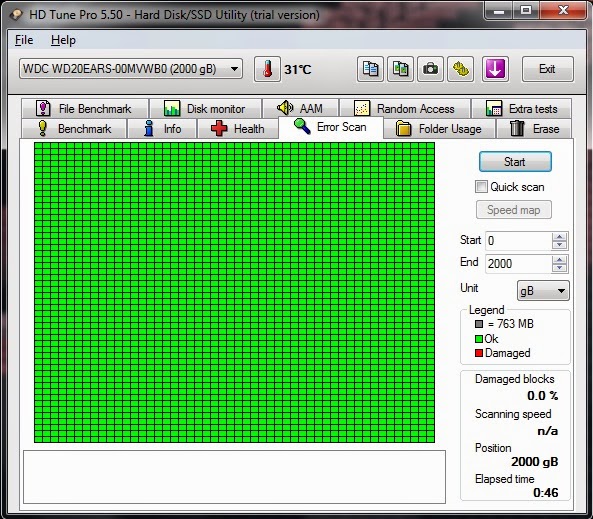
Pada proses diatas kotak hijau mengartikan bahwa hardisk baik-baik saja dan kotak merah berarti masih ada sisa bad sector biarkan proses berjalan sampai kotak hitam terisi semua. ini memakan waktu yang agak lama tergantung dari kapasitas hardisk dan banyaknya bad sector pada hardisk. Setelah kotak sudah terisi semua kita bisa melihat keadaan hardisk seperti gambar dibawah ini 


Gambar diatas merupakan hasil scan yang telah dilakukan. Selesai..
Selamat mencoba

http://cobamotor.blogspot.co.id/2015/05/cara-menggunakan-hd-tune-pro-550-pada.html

Jumat, 19 Agustus 2016

corel draw x7


http://www.4shared.com/file/ECRCaDK8ba/kickasstocoreldrawx7x32x64btis.html

Senin, 20 Juni 2016

Kamis, 03 Maret 2016

TeraCopy Pro 2.27 Full Version - Software Percepat Copy File


TeraCopy Pro 2.27 Full Version - Software Percepat Copy File

Download TeraCopy Pro 2.27 Full Version - Software Percepat Copy File | Febri Gamesoft - Seperti biasanya saya akan membagikan software gratis untuk anda. Untuk software kali ini adalah TeraCopy Pro 2.27, Kalian sudah pada tahu belum tentang software yang satu ini. Pastinya ada yang sudah tahu dan ada yang belum tahu, oke bagi yang belum tahu silahkan anda simak sedikit ulasan tentang TeraCopy ini. Seperti yang saya tahu TeraCopy ini adalah salah satu software yang digunakan untuk mempercepat mengCopy file. Fitur: 
  • Salin file lebih cepat. TeraCopy menggunakan buffer yang disesuaikan secara dinamis untuk mengurangi mencari kali. Asynchronous copy mempercepat transfer file antara dua hard drive fisik. 
  • Pause dan melanjutkan transfer file. Jeda proses copy setiap saat untuk membebaskan sumber dayasistem dan lanjutkan dengan satu klik.  
  • Error recovery. Dalam kasus copy error, TeraCopy akan mencoba beberapa kali dan dalam kasus lebih buruk hanya melompat file, tidak mengakhiri seluruh transfer. 
  • Interaktif daftar file. TeraCopy menunjukkan gagal transfer file dan memungkinkan Anda memperbaiki masalah dan hanya masalah recopy file.
  • Integrasi Shell. TeraCopy dapat sepenuhnya menggantikan Explorer menyalin dan memindahkanfungsi, yang memungkinkan Anda bekerja dengan file seperti biasa. Dukungan Unicode penuh. 
Software ini sangat berguna sekali bagi yang kehidupannya suka mengcopy file-file seperti game,software dll.
Screenshot:
TeraCopy Pro 2.27 Full Version - Software Percepat Copy File
TeraCopy Pro 2.27 Full Version - Software Percepat Copy File
Link Download:
Cara memasukkan Key Tera Copy 2.27:
  1. Ekstrak file yang sudah kamu download tadi.
  2. Install dulu Tera copy seperti biasa.
  3. Jika sudah selesai,jalankan Tera Copy.
  4. Copy key dibawah ini  :
    LVUWAASAAAw+rC28xqUEja7DowVzMbZBUkVij+pW5lCOmynWrNYyPxcy87BuKqIu
    D91Cy+K2iYy1579gnRrS/mTFkqoStcSeqEOzvdYWD91v2Iwc82HkjX8T7Vl1Wv5g
    homCnlytx/iNF7lavbtd68jdKCGuRgjdHESsqoSE2Vry9E/hZent6ZKZx3TdFKlq
    vOkydZsyyF0kb2TDmGJSs5KPDYjRcUHqE9fLvSvj6SnwMNhm1qVTdJuWx9/tM4OE
    S9Esp32yr9VMYvUdgXFBVFFtF5XU2O3C2Fu/qAqm9K2U9vfXZhd4Nbeb5u442lZs
    8SMYEkTLa1wqpkhz9jvDxGfsnQrfdYtz50V72uiez0/M1HGqZeRE+7PIt0iBod/U
    pBUAzK7HO6Ig8TGG6xIG33cRM/WXlSLB
  5. Klik More lalu klik Get Pro Version.
  6. Kemudian klik Enter Registration Key dan klik OK.
  7. Restart Tera Copy. Selesai...
Jika terjadi Kesalahan silahkan hubungi Admin:
Sekian artkel kali ini yang berjudul Download TeraCopy Pro 2.27 Full Version - Software Percepat CopyFile semoga bermanfaat.
http://www.mas-feb.com/2014/03/teracopy-pro-227-full-version-software.html