Kamis, 13 November 2014
Detail Produkhttp://mikrotik.co.id/produk_lihat.php?id=392
|
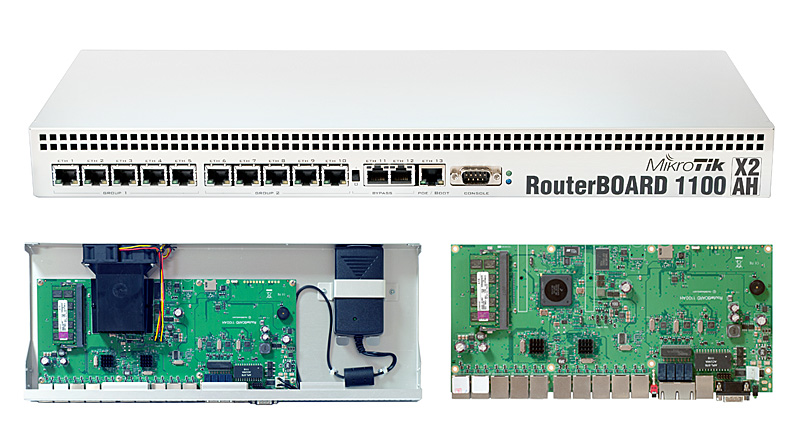
Router RB1100AHx2-LM 1U Rackmount
| Saat ini kami tidak memiliki persediaan barang ini. |
klik pada gambar untuk melihat gambar lebih besar |
Adalah produk pertama routerboard yang menggunakan multi processor, memungkinkan pengaturan jaringan yang lebih cepat, dengan processor P2020 1066MHz Dual Core, 512MB, routerOS level 6, dan casing 1U rackmount.
|
| Spesifikasi RB1100AHX2-LM | ||||||||
| Product Code | RB1100AHX2-LM | |||||||
| Architecture | PPC | |||||||
| CPU | Freescale P2020 1066MHz Dual Core | |||||||
| Current Monitor | No | |||||||
| Main Storage/NAND | 64MB | |||||||
| RAM | 512 MB | |||||||
| SFP Ports | 0 | |||||||
| LAN Ports | 13 | |||||||
| Gigabit | Yes | |||||||
| Switch Chip | 2 | |||||||
| MiniPCI | 0 | |||||||
| Integrated Wireless | No | |||||||
| MiniPCIe | 0 | |||||||
| SIM Card Slots | No | |||||||
| USB | No | |||||||
| Memory Cards | 1 | |||||||
| Memory Card Type | MicroSD | |||||||
| Power Jack | 110/220V | |||||||
| 802.3af Support | No | |||||||
| POE Input | 10-24VDC | |||||||
| POE Output | No | |||||||
| Serial Port | DB9/RS232 | |||||||
| Voltage Monitor | Yes | |||||||
| Temperature Sensor | Yes | |||||||
| Dimentions | 1U case: 45x75x440mm | |||||||
| Operating System | RouterOS | |||||||
| Temperature Range | -20C .. +45C | |||||||
| RouterOS License | Level6 | |||||||
Adobe Photoshop CS5 Extended (x86+x64) 100 Working
seeders: 61
leechers: 3
Download faster CLICK HERE
To download this torrent, you need a BitTorrent client: Bitlord
|
Cara mengatasi Google Chrome tidak bisa Browsing. ( Recomended )
anda pasti pernah mengalami ini !! walaupun sudah diinstal ulang tetapi tetap tidak bisa browsing nah saya punya tutoriotal nya :
1. Klik Properties pada icon google chrome
3. lalu tambahkan -no-sandbox disamping "C:\Program Files\Google\Chrome\Application\chrome.exe"
4. klik apply
CARA KE 2
1. buka windows Task Manager
2. File-NewTask lalu pilih google chrome
SELAMAT Google Chrome anda sudah bisa dibuka
http://disiang.blogspot.com/2014/02/cara-mengatasi-google-chrome-tidak-bisa.html
Senin, 10 November 2014
How to Remove Unwanted Items from Addressbar History in Windows Explorer?
Recently a visitor asked us how can he remove unwanted items from the drop-down box of Windows Explorer addressbar? We are sure many of you also want to know the same. Whenever we open a path using Explorer addressbar, its automatically stored in the history and anyone can see it by clicking on the addressbar drop-down arrow.You can follow these simple steps to remove unwanted items from Windows Explorer addressbar history:
1. Type regedit in RUN dialog box and press Enter. It'll open Registry Editor.
2. Now go to following key:
HKEY_CURRENT_USER\Software\Microsoft\Windows\CurrentVersion\Explorer\TypedPathsIn right-side pane, you'll see various String values with the name url1, url2, url3 and so on. Their value will be set to the path which you see in addressbar drop-down history.
3. You just need to delete the String value which contains the path which you want to remove from addressbar history list. e.g. if you want to remove the 4th item "C:\ProgramData\Microsoft\Windows" from history, then delete the "url4" String value.
4. That's it. Now the deleted path will no longer appear in Explorer addressbar history.
PS: If you want to clear the whole history, you can right-click on the addressbar in Windows Explorer and select "Delete history" option.
http://www.askvg.com/how-to-remove-unwanted-items-from-addressbar-history-in-windows-explorer/
Untuk cara setting gmail di
outlook sebenarnya hampir sama dengan setting yahoo, hotmail di
microsoft outlook cumak mungkin ada beberapa bagian saja yang
membedakan.
Untuk mensetting gmail di ms oulook 2010 maupun 2007 silahkan di simak penjelasannya di bawah ini :
- Pertama, silahkan buka Ms outlook sobat di groupnya microsoft. Start -> All Programs -> Microsoft Office, pilih Microsoft Outlook
- Jika sobat belum pernah membuka outlook 2010, biasanya akan muncul pesan microsoft outlook 2010 startup klik tombol Next, maka akan muncul pesan email configuration sobat pilih Yes dan Next untuk melanjutkan
- Tapi jika sobat udah membuka ms outlooknya, klik menu Account Setting -> New
- Maka akan muncul setting account email disini ada 2 pilihan cara setting, cara yang pertama sangat simple dan cara yang kedua untuk cara setting gmail di outlook secara manual.
- Cara yang pertama ; pilih menu email account isikan nama = nama, email adress = alamat email gmail, password & retype password = password yang digunakan di gmail dan klik tombol Next
- Tunggu beberapa saat, kemudian klik tombol Finish untuk mengakhiri.
- Cara yang kedua ; sobat pilih Manually configure server settings or additional server types, Next
- Maka akan muncul 3 opsi pilihan, pilih Internet E-mail dan klik tombol Next
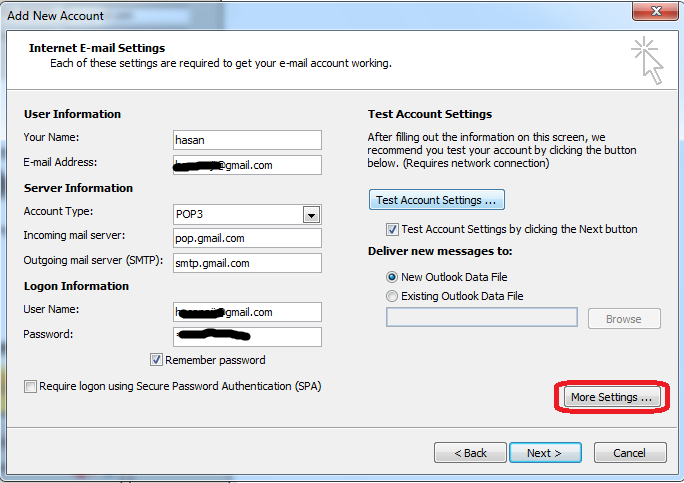
- Selanjutnya isikan data seperti berikut
Email adress = alamat email
Server Information
Incoming mail Server = pop.gmail.com
Outgoing mail Server (SMTP) = smtp.gmail.com
pada bagian Logon information
username = alamat email, password = pasword yang digunakan
- Selanjutnya klik tombol More Settings pada tab menu Outgoing Server centang pada bagian My outgoing Server dan pada tab menu Advanced POP3 = 995 dan SMTP = 465 pilih mode SSL dan klik OK
- Tunggu beberapa saat hingga muncul pesan finish, klik tombol Finish.
Berikut tadi cara untuk mensetting email
gmail di Ms Outlook, jika ternyata gagal sobat meungkin bisa mengecek
settingan POP3 di gmail, caranya klik menu setting pada account gmail
sobat trus pada bagian Forwadding and POP/IMAP centang pada Enabled POP
for all mail kemudian Save changes.
http://www.tipstriks.com/2011/12/cara-setting-email-gmail-di-ms-outlook.html
Jumat, 07 November 2014
Cara Mencrack Mikrotik 5.20 yang Trial di VMware Dengan Menggunakan WinBox
2. Pada menu virtual machine settings pilih tab Hardware dan klik
Network Adapter. Pada menu Network Connection (sebelah kanan) centang
Host-only: A private network shared with the host, kemudian klik OK.
3. Hidupkan Virtual machinenya dengan klik Power on this virtual machine.
4. Beralih pada Winbox, jalankan aplikasi WinBoxnya. Jika belum punya Winbox, anda bisa mendownloadnya KLIK DISINI
5. Pada kolom Connect To klik browse (...) untuk mencari MAC Address Mikrotik.
6. Klik Mac Address tersebut dan klik connect
7. Akan masuk dalam menu WinBox, dan akan muncul pemberitahuan bahwa Mikrotik masih Trial. Kemudian klik License...
8. Pada menu License, klik Import Key...
9. Masukkan key Pada ISO yang sebelumnya sudah diextract.
10. Muncul pemberitahuan untuk reboot, klik Yes. Kemudian klik OK
11. Mikrotik 5.20 pada VMware otomatis akan reboot dan silahkan login. Selamat Mikrotik anda sudah Full Version
Sebelum di Crack
Sesudah di Crack
Langganan:
Postingan (Atom)